
How to Fix Robots.txt Errors on Your Blog (2026)
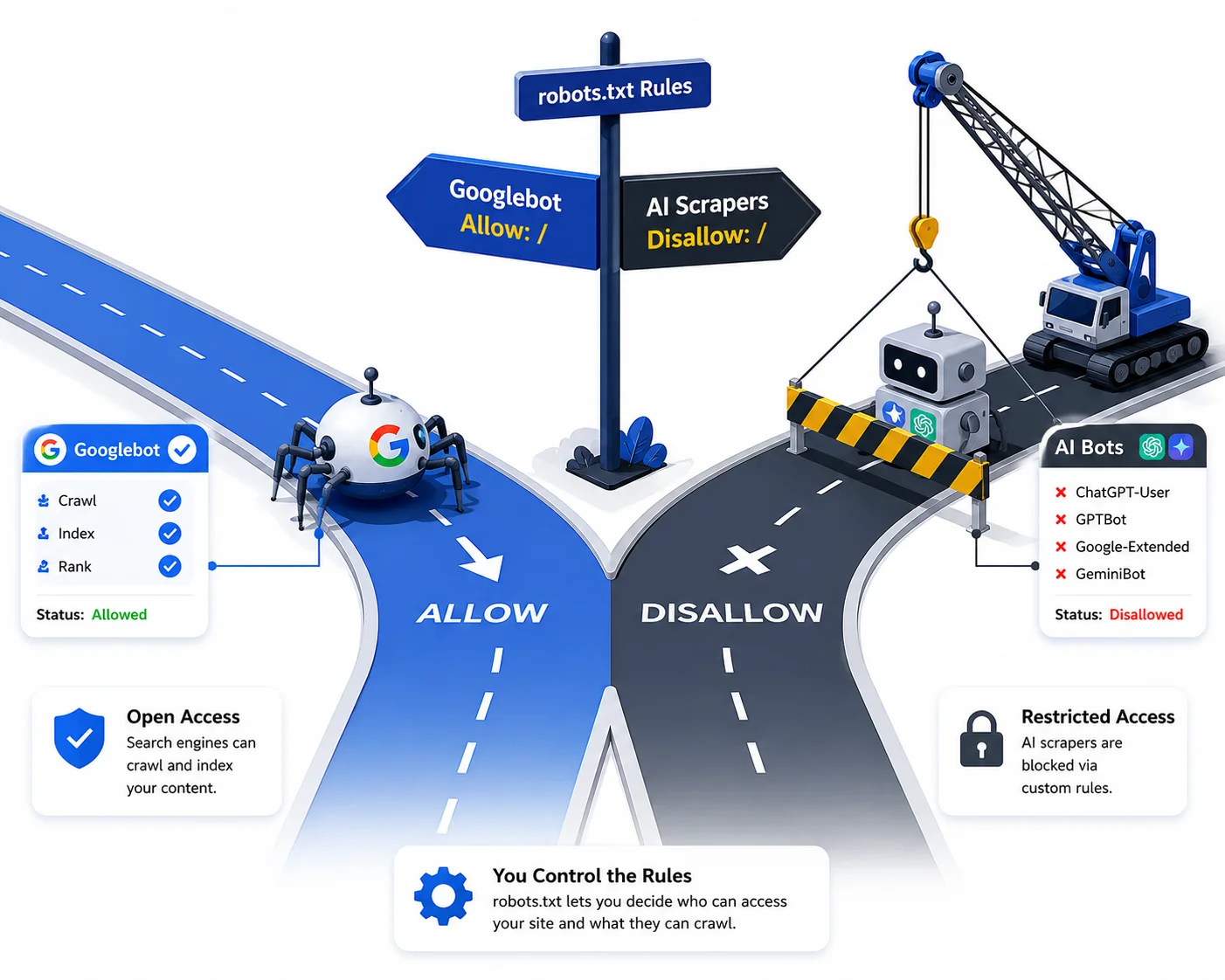
Picture this: a blogger spends six months building a WordPress site — 40 posts, a proper internal linking structure, a few backlinks from guest posts. Then they install a new SEO plugin, click through the setup wizard without reading carefully, and the plugin writes a single line to their robots.txt file: Disallow: /. Within two weeks their entire site vanishes from Google. Not demoted. Gone. Every page de-indexed in one crawl cycle because a four-character directive told every search bot on the internet to leave. They don't find out until they notice their Search Console showing zero impressions. This is not a hypothetical — it happens to real blogs regularly, and it's one of the fastest ways to destroy months of SEO work.
Robots.txt is a plain text file that lives at the root of your domain. It doesn't block pages from loading — anyone with the URL can still visit. What it does is instruct web crawlers on what they're allowed to fetch. Google's bots read it before doing anything else on your site. If the file tells them to stay out, they stay out. There's no override, no penalty, no warning — just absence from search results until you fix the file and wait for the next crawl.
This article covers the specific errors that cause crawl blockage, misread directives, improperly blocked resources, and broken sitemap references — and exactly how to fix each one. Most of the fixes take under ten minutes.
The Core Mechanics of Robots.txt: Why Small Errors Tank Traffic
Robots.txt works on a simple match logic: you specify a user-agent (which crawlers the rule applies to), then a directive (Disallow or Allow), then a path. Googlebot reads the file top to bottom and applies the first matching rule it finds. That last part matters — if you have a broad disallow rule at the top and a specific allow rule below it, the disallow wins because it matched first.
The file is case-sensitive on paths. /Blog/ and /blog/ are different paths to a crawler even if your server treats them as identical. And unlike most SEO settings, errors here are binary: either crawlers can reach your content or they can't.
How Crawl Blockage Differs from Indexation Directives
Robots.txt and the noindex meta tag do different things and this confusion causes real problems. A noindex tag tells Google "you can crawl this page, but don't add it to the index." Robots.txt says "don't crawl this URL at all." If you block a URL in robots.txt and also put a noindex tag on it, Google can't read the noindex tag because it can't access the page. The noindex becomes irrelevant.
More importantly: a page blocked in robots.txt can still appear in Google's index if other pages link to it. Google will list the URL (it knows it exists from those links) but won't show a title or description because it's never been allowed to read the page. You get a ghost listing — the URL shows up in results but with no useful information, which is worse than not ranking at all.
The Cost of a Misplaced Slash: Total Search De-indexing
The most dangerous line in any robots.txt file is this:
User-agent: *
Disallow: /
The slash means "the root directory and everything under it" — which is your entire website. Every crawler in the world, told to avoid every URL. This is the correct syntax for a site that intentionally wants zero search visibility (a staging server, for example). On a live blog, it's a disaster.
The correctly configured version for a blog that wants full crawl access looks like this:
User-agent: *
Disallow:

Sitemap: https://yourdomain.com/sitemap.xml
An empty Disallow: line means "nothing is blocked." Not Disallow: / — that blocks everything. Not omitting the line entirely — always include it explicitly. Empty value, full access.
1. Locating and Verifying Your Root Directory File Path
Your robots.txt file must be at https://yourdomain.com/robots.txt — not in a subfolder, not at /wp-content/robots.txt, not anywhere else. Search engines only check one location. If the file is anywhere other than the root, crawlers won't find it and won't follow its rules.
Most WordPress installs place the robots.txt correctly by default, but after migrations, subdirectory installs, or moving from HTTP to HTTPS, the file sometimes lands in the wrong place or gets duplicated.
Why Subdirectory Placements Cause Search Engines to Ignore Rules
If your WordPress install lives at yourdomain.com/blog/ (a subdirectory install rather than the root), your robots.txt is still expected at yourdomain.com/robots.txt — not at yourdomain.com/blog/robots.txt. Crawlers don't follow subdirectory conventions for this file. A robots.txt in the wrong directory is functionally invisible; crawlers will treat your site as having no rules at all, which is harmless but means any intentional blocks you've set up aren't being applied.
Inspecting Live Code Directly via Your Web Browser Search Bar
The fastest verification: type https://yourdomain.com/robots.txt directly into your browser and press enter. You should see plain text — the file contents — rendered in the browser. If you see a 404 error, the file doesn't exist. If you see a WordPress page or a redirect, the root path is misconfigured.
From here you can read the full contents of your live robots.txt exactly as Googlebot sees it. Don't rely on what your SEO plugin's editor shows — check the live file directly. Plugin interfaces sometimes cache an older version.
2. Fixing Overly Broad Disallow Directives and Wildcards
Broad directives are the most common robots.txt mistake after the total block. Bloggers add a disallow rule to hide one thing — an admin panel, a checkout page — and accidentally write a pattern that hides much more.
The Universal Block Trap: Correcting the "Disallow: /" Syntax
If you meant to block only your WordPress admin area, the correct rule is:
User-agent: *
Disallow: /wp-admin/
Not Disallow: / (everything) and not Disallow: /wp-admin without the trailing slash (which would also block any URL starting with /wp-admin, including some that are harmless to crawl).
The /wp-login.php file is worth blocking separately, since it's a login endpoint that offers no SEO value and gets hammered by bots:
User-agent: *
Disallow: /wp-admin/
Disallow: /wp-login.php
Allow: /wp-admin/admin-ajax.php
The admin-ajax.php allow rule is necessary because some front-end features — search, dynamic content loading — use that endpoint. Block it and parts of your site may break for real users.
Safely Deploying Asterisks and Dollar Signs for Pattern Matching
The asterisk (*) matches any sequence of characters. The dollar sign ($) matches the end of a URL. Used incorrectly, these turn a targeted rule into a blanket block.
Disallow: /*.pdf$ blocks all URLs ending in .pdf — useful for keeping PDF files out of the index.
Disallow: /*? blocks every URL containing a query parameter — this would block your search results pages, filter pages, and any URL with tracking parameters. That's usually not what you want.
Before using wildcards, test the pattern against your actual URL structure. Google's URL Inspection tool in Search Console lets you enter specific URLs and see whether they'd be blocked by your current robots.txt.
3. Unblocking Essential CSS, JavaScript, and Image Resources
Google renders your pages. It doesn't just read the text — it loads the CSS, executes the JavaScript, and checks the layout. If your robots.txt blocks the files that make your theme work, Google sees a broken page. A broken page looks like low-quality content. Low-quality content gets lower rankings or gets excluded from indexing entirely.
Why Google Needs Core Theme Elements to Verify Layout Quality
Google's quality assessment partially relies on how a page looks when rendered. If your stylesheet is blocked, Google sees raw HTML with no layout. If your JavaScript is blocked and your site uses JS to load content, Google sees blank sections. The helpful content system factors in user experience signals — a site that visually renders as broken looks unreliable, and that affects ranking.
The files to always leave unblocked: /wp-content/themes/, /wp-content/plugins/ (specifically any plugin that affects front-end rendering), and your main JS files. Check your current robots.txt for any disallow rules pointing at these paths.
Auditing Asset Paths to Prevent Partial Rendering Penalties
Go to Google Search Console > URL Inspection > inspect your homepage URL > click "Test Live URL." After the test runs, click "View Tested Page" and check the screenshot. If your page looks visually broken — missing styles, layout collapsed, images not loading — something in your robots.txt is blocking a resource Google needs.
The coverage report will also flag "Crawled — currently not indexed" pages where rendering issues were detected. Cross-reference these with any recent changes to your robots.txt.
4. Resolving AI Bot and Scraping Crawler Configurations
The robots.txt conversation changed in 2023 and has kept evolving since. AI companies started releasing crawlers to train large language models, and those crawlers read robots.txt — at least, the reputable ones do. By 2026, most major AI platforms respect disallow directives for their training crawlers, even if their retrieval crawlers (which answer live queries) operate under different rules.
Managing Retrieval Crawlers vs. Large Language Model Trainers
OpenAI, for example, uses two separate crawlers: GPTBot for training data collection and ChatGPT-User for live retrieval when a ChatGPT user asks a question that triggers a web search. Blocking GPTBot prevents your content from being used in future training data. Blocking ChatGPT-User prevents ChatGPT from citing your site in live answers. These are different decisions and need separate directives.
The same split applies to Google's AI products: Googlebot handles search indexing, while Google-Extended handles Gemini training data. Blocking Google-Extended does not affect your search rankings.
Custom Directives for ChatGPT, Perplexity, and Gemini Agents
A robots.txt section managing AI crawlers looks like this:
# Block training data collection, allow live retrieval
User-agent: GPTBot
Disallow: /

User-agent: Google-Extended
Disallow: /

# Allow live AI citation crawlers
User-agent: ChatGPT-User
Allow: /

User-agent: PerplexityBot
Allow: /
Whether you block training crawlers is your call — there's no SEO downside to blocking them, since they're separate from search indexing bots. But blocking live retrieval crawlers like PerplexityBot means your content won't appear in AI-powered answer engines, which are now a meaningful traffic source for informational content.
5. Debugging Server-Side Fetch Blocks and HTTP Errors
Robots.txt errors aren't always inside the file itself. Sometimes the server returns an error when Googlebot tries to fetch the file, and Google has to make a call about what that means. Different HTTP status codes produce different crawler behaviors.
Diagnosing 5xx Server Outages and Timeout Flags in Search Console
If your server returns a 5xx error when Googlebot fetches robots.txt, Google treats this as a temporary access problem. It doesn't immediately crawl your full site — it applies the most recently cached version of your robots.txt instead, and keeps trying until the server recovers. If 5xx errors persist for several days, Google may start treating the file as effectively empty and crawl the whole site.
Check your server's error logs and Search Console's Coverage report for any 5xx flags. These usually indicate server misconfiguration, a hosting outage, or a PHP timeout — not a robots.txt problem per se, but one that affects how your robots.txt behaves.
How Google Treats 404 Missing Files Versus 403 Forbidden States
A 404 on your robots.txt (file doesn't exist) tells Google there are no restrictions — it crawls everything. This is fine for most blogs that don't need to block anything.
A 403 (forbidden — the server is blocking Googlebot from reading the file) is treated differently. Google sees an access restriction and becomes conservative: it slows crawling and may stop indexing new content until the 403 resolves. If your robots.txt returns 403, check your server's file permissions and any security plugins that might be blocking bot access to root-level files.
6. Connecting Your XML Sitemap Correctly Inside the File
Every robots.txt file on a blog should include a sitemap reference. This isn't required — Google can find sitemaps through Search Console — but including it in robots.txt means any crawler that reads the file immediately knows where your sitemap is, without needing a separate submission step.
Formatting Fully Qualified Absolute URLs at the Footer Level
The sitemap line goes at the bottom of the file, after all your user-agent directives. It uses an absolute URL — the full address including HTTPS:
Sitemap: https://yourdomain.com/sitemap.xml
Not /sitemap.xml. Not sitemap.xml. The full URL with protocol. Some WordPress setups generate the sitemap at /sitemap_index.xml (for Yoast) or /sitemap.xml (for RankMath). Check your actual sitemap URL first by visiting yourdomain.com/sitemap.xml in your browser — if it loads, that's the URL to use.
Why Multiple Sitemap Listings Require Distinct Line Breaks
If you have separate sitemaps — one for posts, one for pages, one for images — you can list all of them:
Sitemap: https://yourdomain.com/post-sitemap.xml
Sitemap: https://yourdomain.com/page-sitemap.xml
Each sitemap gets its own line starting with Sitemap:. Don't put them on the same line and don't separate them with commas. The robots.txt spec requires one directive per line and parsers will misread any other format.
Testing and Deploying Your Patches Across WordPress and Custom Sites
Once you've edited your robots.txt, you need to verify the changes actually went live and that the syntax parsed correctly. Editing the wrong file, or having a plugin overwrite your changes, is common enough that verification isn't optional.
Editing Virtual Text Modules in Rank Math, Yoast, and AIOSEO
WordPress SEO plugins generate robots.txt virtually — they don't create a physical file on your server unless you ask them to. If a physical robots.txt file exists in your root directory and an SEO plugin is also generating one, the physical file takes precedence and the plugin's settings are ignored.
In RankMath: go to General Settings > Edit robots.txt. This is the virtual file the plugin generates.
In Yoast: go to SEO > Tools > File Editor. If it says "no physical file detected," you're editing the virtual version. If it says a physical file exists, you need to edit that one directly.
In AIOSEO: go to All in One SEO > Tools > Robots.txt Editor.
After saving through the plugin, visit yourdomain.com/robots.txt in your browser and hard-refresh (Ctrl+Shift+R or Cmd+Shift+R). Confirm the change is reflected in the live file.
Uploading Manual Text Modifications Safely via Secure FTP Clients
If you're editing the physical file directly — through FTP or your hosting file manager — always keep a backup of the existing file before making changes. Download it, save a copy named robots-backup.txt, then edit the original.
Use a plain text editor (Notepad, TextEdit in plain text mode, VS Code) — not a word processor. Word processors add invisible formatting characters that corrupt plain text files. Upload via SFTP if available, or through your hosting control panel's file manager. After uploading, visit the live URL to confirm the new version is serving correctly.
Using Modern Diagnostic Tools to Audit Your Updates
Editing the file is step one. Confirming Google parsed it correctly is step two, and it requires using Search Console — not just manually reading the file.
Navigating the Search Console Robots.txt Report for Parsing Flags
In Google Search Console, go to Settings > Crawling > robots.txt. This shows you the last-fetched version of your file, when Google last crawled it, and whether any parsing warnings were detected. Parsing warnings appear when the syntax is technically readable but contains patterns Google considers unusual — like overlapping allow and disallow rules for the same path.
The report also shows the HTTP status code Google received when fetching the file. If you're seeing anything other than 200 here, investigate the server configuration before assuming the file content is the problem.
Emulating Crawler Journeys via Free Web-Based Validation Scans
Several free tools let you simulate how a crawler reads your robots.txt:
Google's Rich Results Test doesn't test robots.txt directly, but it will tell you if Googlebot is blocked from fetching a specific page — useful for checking individual URLs after editing your file.
robots.txt Checker at technicalseo.com parses your file and lets you test specific URLs against the rules. Enter your domain, load the file, then enter any URL to see whether it would be blocked.
Screaming Frog (free up to 500 URLs) crawls your site as a bot and flags every URL that returns a robots.txt block. It's the most comprehensive way to catch any unintended blocks before Googlebot does.
- What does the "Blocked by robots.txt" message in Google Search Console mean?
- It means Googlebot tried to crawl a specific URL, checked your robots.txt first, and found a disallow directive covering that URL. The page was not fetched, not rendered, and not indexed. If the blocked URL is something you want in the search results, you need to remove or modify the disallow rule covering it, then request a recrawl via the URL Inspection tool in Search Console.
- Can a page still show up on Google if it is blocked in my robots.txt file?
- Yes, and this is one of the more confusing behaviors. If other websites link to a blocked URL, Google knows the URL exists from those links. It can list the URL in search results but without a title, description, or any useful snippet — because it was never allowed to read the page. These ghost listings look low-quality and click rates on them are nearly zero. The fix is removing the robots.txt block if you want the page properly indexed.
- How long does it take for Google to recognize updates made to my robots.txt file?
- Typically between 24 hours and a few days. Google caches robots.txt for up to 24 hours, so changes don't take effect immediately in terms of what Googlebot sees. After the cache expires and the new file is fetched, updated allow rules take effect on the next crawl of each affected URL. Previously blocked pages that are now allowed can take a week or more to fully re-index, depending on your site's crawl frequency and overall authority.
- Is it safe to leave my robots.txt completely empty or delete it entirely?
- Empty file: safe. A blank robots.txt returns a 200 OK status with no rules, which Google reads as "no restrictions — crawl everything." Deleting the file entirely: also safe. A missing robots.txt returns a 404, which Google also reads as no restrictions. Either approach is fine for a blog with no content you want to hide from crawlers. The only reason to have content in robots.txt is if you have specific paths to block or a sitemap reference to include.
- How do I block bad scraper bots while keeping legitimate search crawlers allowed?
- Robots.txt is the wrong tool for this. It's a voluntary protocol — legitimate bots follow it, malicious scrapers ignore it. To actually block aggressive scrapers, use your server's firewall or a security plugin (Wordfence has bot-blocking features) to deny requests based on user-agent strings or request patterns. For rate-limiting scrapers that do respect robots.txt, you can add specific user-agent blocks in your robots.txt, but malicious scrapers will bypass it anyway. The real protection happens at the server level.
Conclusion — Secure Your Technical Site Access to Accelerate Growth
Robots.txt is a tiny file with outsized consequences. A single misplaced slash can pull a blog out of Google's index completely. Most bloggers never check it after initial setup — which means a plugin update, a site migration, or a well-meaning wizard can quietly break their crawl access without any visible warning until traffic data shows the fallout.
The one thing to check today: open yourdomain.com/robots.txt in your browser right now and read the first Disallow: line under User-agent: *. If it says Disallow: /, your entire site is blocked and you need to fix that before anything else matters. If it's empty or says Disallow: /wp-admin/, you're in reasonable shape and can work through the rest of this list at a steadier pace.
Technical SEO on your own blog isn't complicated — but it's unforgiving. Errors don't produce warning messages. They produce silence.
If you're building content strategy alongside the technical foundation, see how TikTok SEO works in 2026 and which niches are worth targeting right now.
Related Articles
Explore the SEO & GEO hub →
How to Fix Duplicate Content Issues on Your Blog (2026)
Duplicate content doesn't just confuse Google — it slowly bleeds your blog's traffic, crawl budget, and AdSense approval chances.
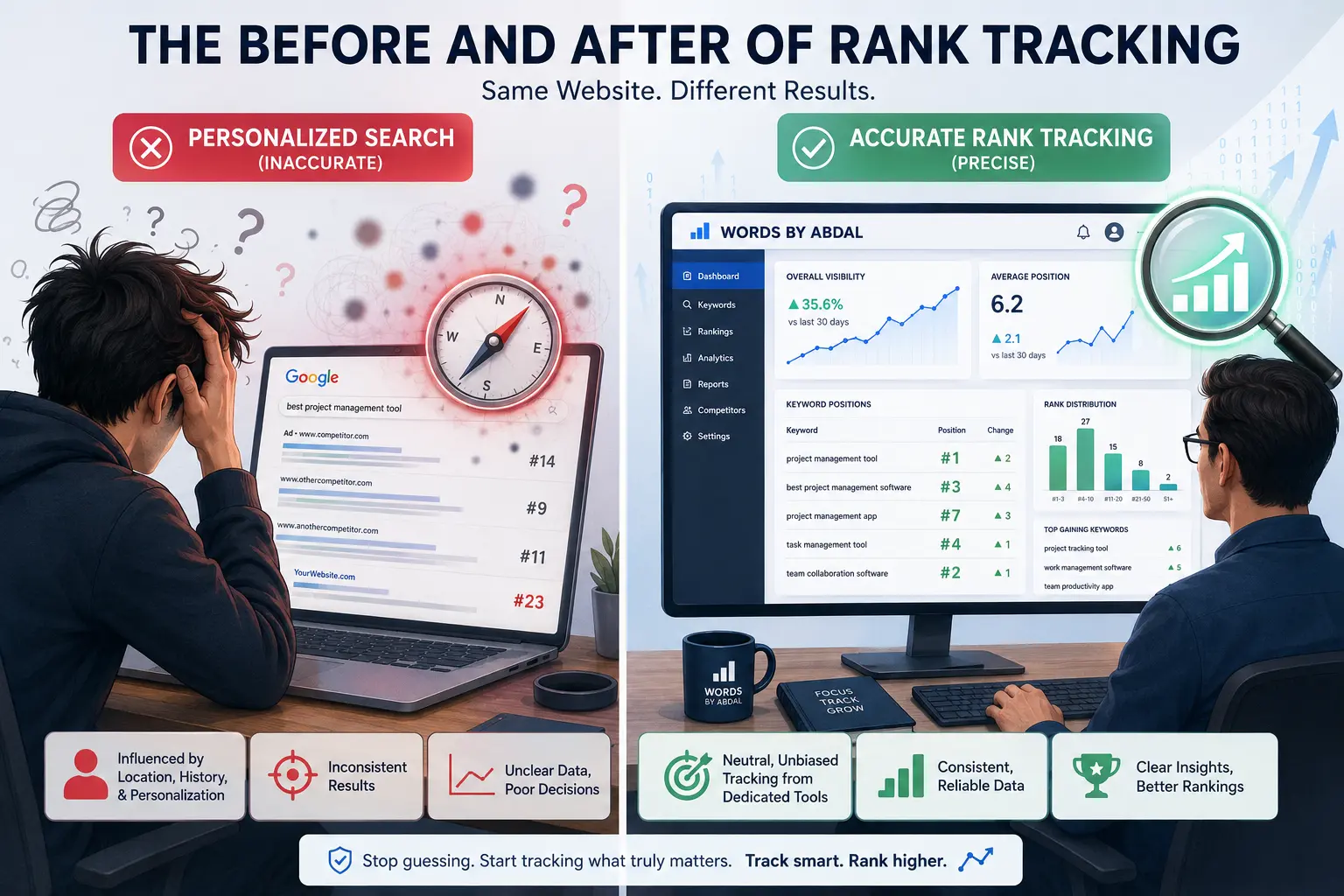
9 Best Free Rank Tracking Tools for Bloggers (2026)
Manual Google searching lies to your face — here are the six free rank trackers that actually show where your blog stands in organic search.
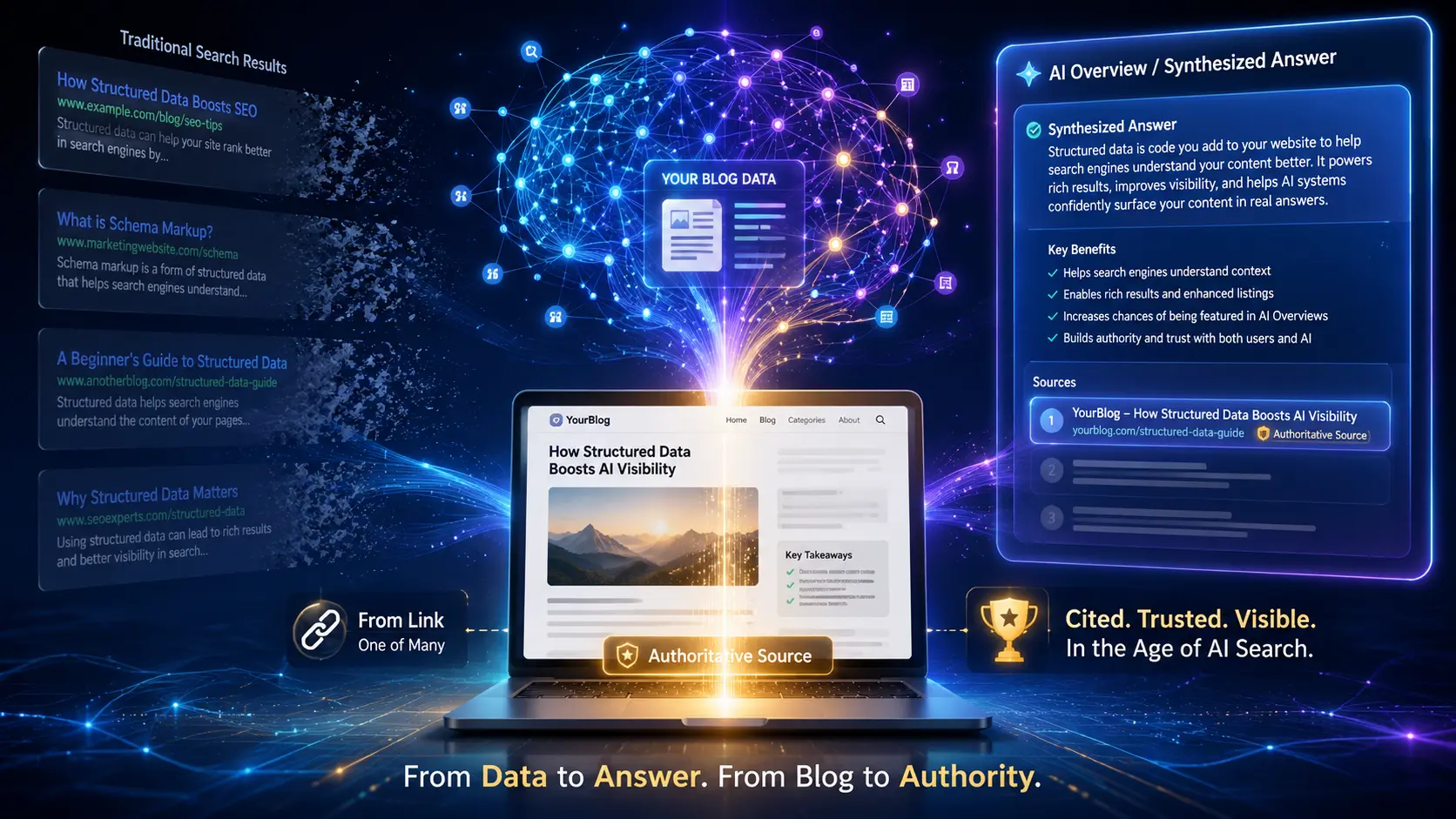
Generative Engine Optimization Guide for Bloggers
Ranking #1 on Google means nothing if an AI Overview answers the question before anyone scrolls down to your link.