How to Use AI Video Editors for YouTube Shorts
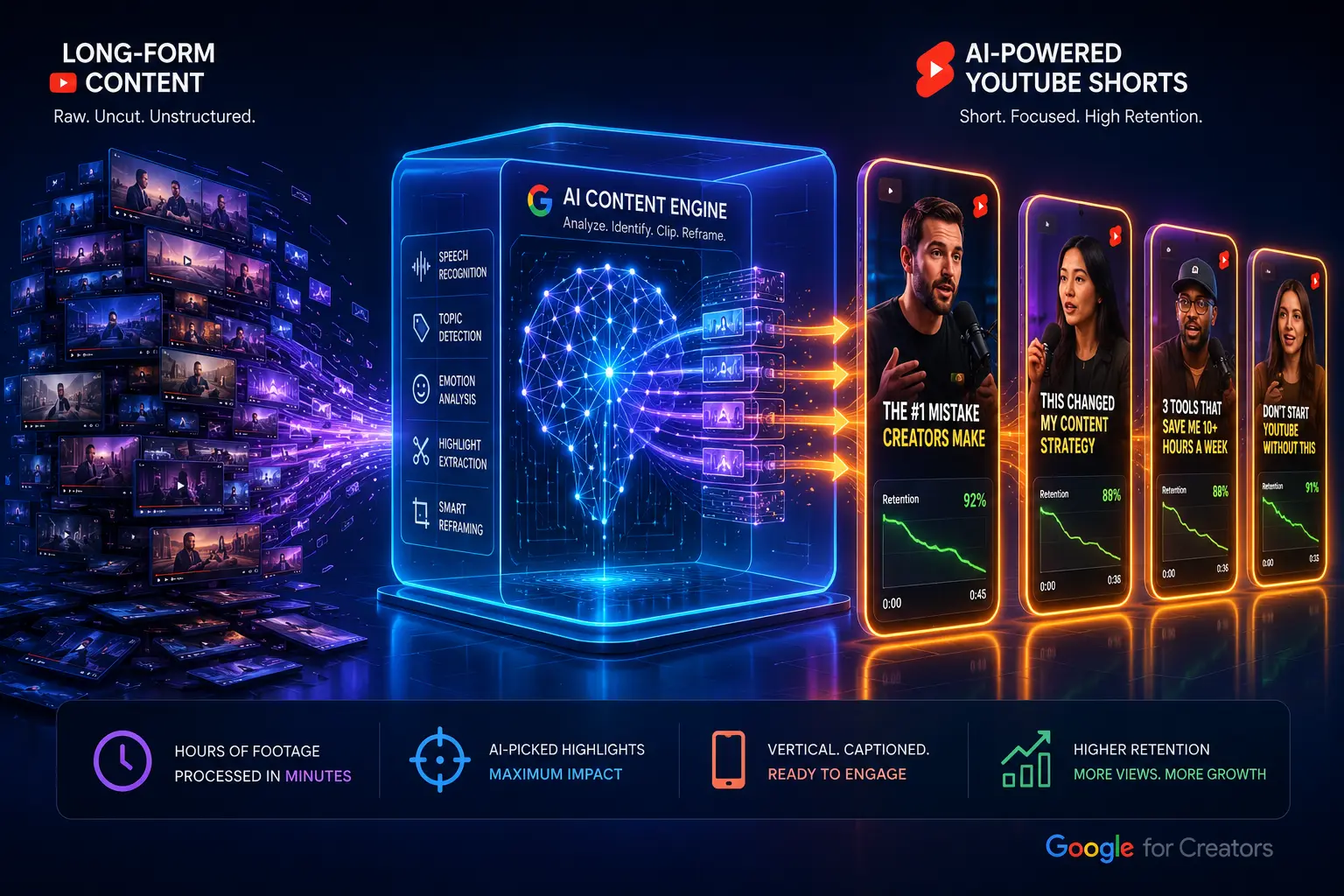
Cutting a single 60-second Short used to eat 45 minutes if you did it properly. Find the hook, trim the dead air, write captions, resize for vertical, pick music that doesn't get the audio muted on upload. Multiply that by three Shorts a day, which is roughly what the algorithm rewards right now, and you're looking at a part-time job just to keep one channel fed.
Most creators solve this by cutting corners on quality, not time. They post one Short a day instead of three, or they post three and watch retention crater because the cuts are sloppy and the captions are a static white box nobody reads past the first line. Neither option grows a channel in 2026.
This guide walks through the actual workflow professional Shorts editors use with AI tools right now: which software to pick depending on your budget and skill level, the step-by-step process from raw footage to published Short, and the specific places automation breaks down if you don't catch it. No tool worship here. Just what works and what you'll need to fix by hand.
Choosing the Right AI Video Editor for YouTube Shorts
The AI video editor market splits into two camps, and picking the wrong one for your workflow wastes more time than editing manually would.
Cloud-Based Repurposing Tools vs. Full-Suite AI Editors
Repurposing tools take a long-form video, usually a podcast, webinar, or YouTube upload, and spit out multiple short clips automatically. You paste a link or upload a file, the AI finds the moments it thinks are clip-worthy, and you get a batch of vertical videos with captions baked in. Opus Clip and Vidyo work this way. They're built for creators who already have long-form content sitting around and want it sliced into Shorts without manual scrubbing.
Full-suite AI editors are closer to traditional editing software with AI features layered on top: CapCut, Descript, and Premiere Pro's AI tools fall here. You're still building the video yourself, but the AI handles specific tasks like auto-captioning, silence removal, or background noise cleanup. These give you more control and produce less generic-feeling output, but they take longer per video.
If you're repurposing existing long-form content, start with a repurposing tool. If you're shooting content specifically for Shorts, a full-suite editor gives you better creative control without the AI making editorial decisions you'd disagree with.
Top AI Short-Form Tools with Free Tiers for Creators
CapCut remains the most generous free option for solo creators. The free tier includes auto-captions, the auto-cut feature that trims silences, and a decent template library, all without a watermark. The catch is export quality caps out lower than the paid tier for some templates, and the AI background removal tool is locked behind CapCut Pro.
Opus Clip gives you 60 minutes of long-form video processing per month for free, which sounds generous until you realize one hour-long podcast episode eats the entire month's allowance. The clips it generates are genuinely strong at finding hooks, but the free tier slaps a watermark on every export.
Descript offers a free tier capped at one hour of transcription per month and limits you to watermarked, lower-resolution exports. Its real strength is the text-based editing model: you edit video by editing a transcript, which is faster than scrubbing a timeline once you're used to it. Worth using even on the free tier just to learn that workflow, then upgrading once you're producing daily.
Veed.io sits in between. The free tier covers basic captioning and resizing with a small watermark, and the AI B-roll suggestion feature works even on the free plan, which most competitors gate behind a paywall.
None of these free tiers will carry a daily-posting schedule past a week or two. Budget for at least one paid subscription once you're serious about volume.
Assessing Video Render Speed and Export Resolutions
Render speed matters more than most creators account for when picking software, because a slow render kills the iterate-and-repost workflow that Shorts rewards. Cloud-based tools like Opus Clip render faster on average because the processing happens on their servers, not your machine. Desktop software like CapCut Desktop or Premiere depends entirely on your hardware.
For resolution, export at 1080x1920 minimum. YouTube compresses Shorts on upload regardless of what you send, but starting at a lower resolution means visible compression artifacts after their pipeline finishes with it. Some AI tools default to 720p on free tiers specifically to push you toward upgrading, so check your export settings before publishing rather than assuming the tool gave you full resolution by default.
The Step-by-Step Workflow to Edit Shorts with AI
This is the actual sequence, in order, that takes a raw video from upload to published Short.
Uploading and Analyzing Long-Form Video Links
Paste your long-form video link directly into the tool rather than downloading and re-uploading the file. Opus Clip, Vidyo, and most repurposing tools accept direct YouTube links and pull the video server-side, which saves you the upload time and preserves source quality better than a re-encoded download would.
Once uploaded, the AI runs a transcription pass first, then an analysis pass that scores segments for engagement potential. This takes anywhere from two to fifteen minutes depending on video length and the tool's current server load. Don't queue multiple long videos at once on free tiers; most cap concurrent processing and you'll just be waiting in line.
Setting the Aspect Ratio to Vertical 9:16
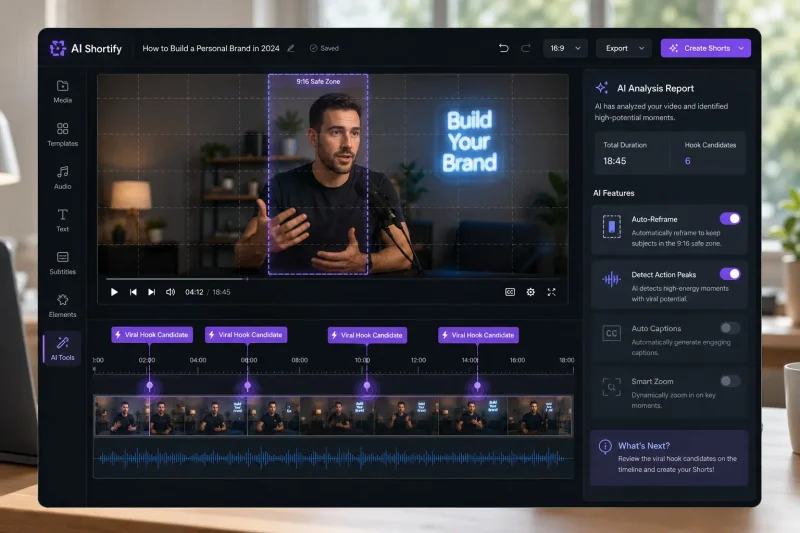
If your source footage was shot horizontally, the AI auto-crop feature will try to follow the subject's face or the most active part of the frame. This works reasonably well for talking-head content and breaks down for anything with multiple speakers or wide shots, where it tends to crop to whoever is talking loudest rather than whoever matters most to the story.
Manually adjust the crop on any clip where the auto-tracking jumps between subjects awkwardly. Most tools let you drag the crop box per-clip even after the AI has applied its default framing, and this thirty-second manual fix is the single highest-leverage edit you can make in the whole process.
Letting AI Detect Viral Hooks and High-Energy Moments
The hook-detection feature scans your transcript for phrases that historically correlate with high retention: questions, contrarian statements, numbers, and emotional spikes in tone of voice. It's genuinely useful for surfacing clips you'd have scrolled past manually, but treat its picks as a shortlist, not a final decision.
Review every suggested clip start and end point. AI hook detection frequently starts a clip one or two seconds too late, cutting off the actual setup for the hook and leaving just the punchline, which confuses new viewers who have zero context. Trim the start point back manually until the clip makes sense without the full original video.
Customizing Automated Templates and Brand Colors
Every tool ships with caption templates and color presets. Using the default template without customization is the fastest way to make your Shorts look identical to thousands of other AI-edited videos in the feed, and viewers notice that sameness even if they can't articulate why.
Set your brand colors once in the tool's settings (most support saving a custom palette) and apply it across every export instead of picking a new template per video. Consistency here matters more than any individual template choice.
Enhancing Viewer Retention with AI Captions and B-Roll
Captions and B-roll are where AI tools earn their subscription price, because both are tedious to do well by hand and genuinely improve retention when done right.
Generating Animated High-Engagement Subtitles Automatically
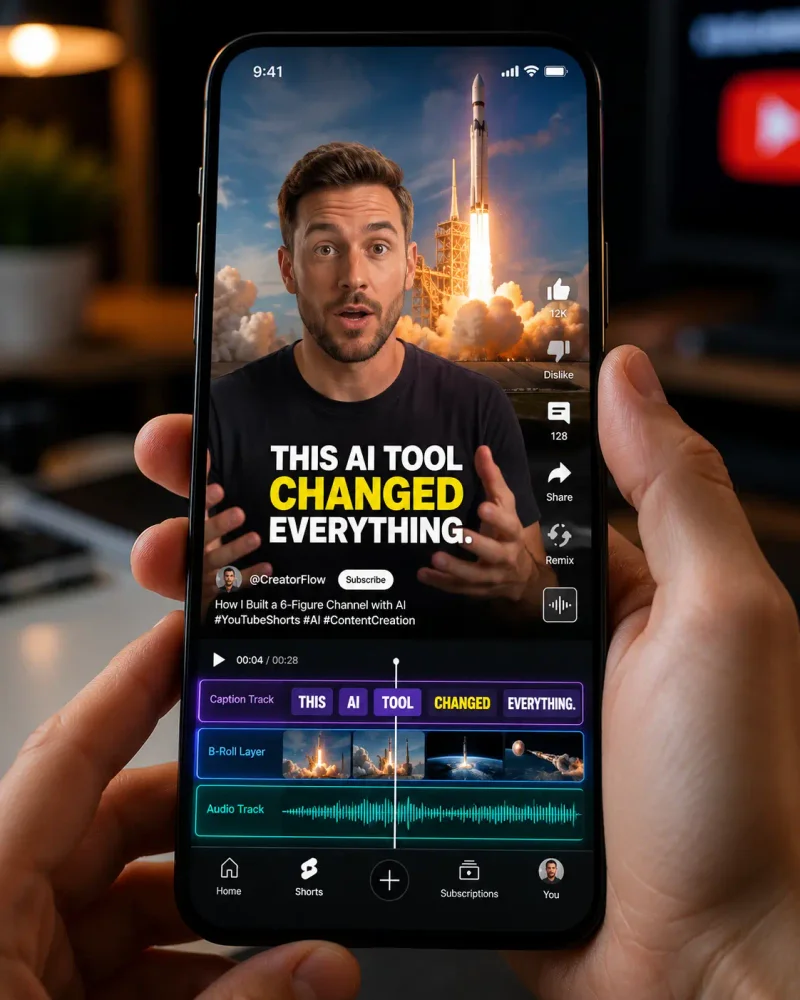
Word-by-word animated captions, where each word pops or highlights as it's spoken, consistently outperform static caption blocks for Shorts retention. Most tools generate these automatically from the transcription pass, but accuracy varies a lot by accent and audio quality.
Always proofread the auto-generated captions before publishing. Tools regularly mishear brand names, technical terms, and anything spoken quickly, and a wrong word in a caption reads as careless even when the rest of the edit is polished. This is a five-minute check that prevents an embarrassing screenshot.
Injecting AI-Driven Contextual B-Roll and Stock Footage
Newer tools like Veed.io and Descript's overlay feature can scan your script for keywords and pull matching stock B-roll automatically, dropping it in during pauses or as a cutaway while you talk. It's a real time-saver for talking-head content that would otherwise be a static face for sixty seconds straight.
The footage it pulls skews generic. Stock clips of "person typing on laptop" or "city skyline at night" show up constantly across creators using the same tool, so if you're trying to build a distinct visual identity, treat AI B-roll suggestions as a starting point and swap in footage that's actually relevant to your specific content where it counts.
Automating Sound Effects and Smart Audio Ducking
Audio ducking, where background music automatically drops in volume when you start speaking, is one of the better-executed automated features across most tools. CapCut and Descript both handle this well without manual adjustment in the majority of cases.
Sound effects on emphasis words ("but," "actually," numbers) are more hit or miss. The AI sometimes adds a whoosh or pop on a word that doesn't deserve emphasis, which reads as try-hard rather than punchy. Scrub through and remove any sound effect placement that doesn't match a genuine beat in your delivery.
Optimizing AI-Generated Shorts for SEO and Monetization
Editing well gets you nowhere if the Short can't be found or doesn't qualify for ad revenue.
Writing High-CTR Titles and Descriptions Using AI Prompts
Use a prompt like this in ChatGPT or Claude after pasting your transcript: "Write five YouTube Shorts titles under 60 characters that lead with the most surprising claim in this transcript, no clickbait phrases like 'you won't believe.'" The constraint on banned AI phrases matters; without it, you'll get generic clickbait that hurts trust over time even if it briefly helps clicks.
For descriptions, include one full sentence summarizing the value of the clip followed by relevant keywords, not a keyword-stuffed list. YouTube's search algorithm has gotten better at penalizing obvious stuffing, similar to how the YouTube algorithm evaluates content quality across formats.
Finding Trending Audio and Hashtagging for the Shorts Feed
Check the YouTube Shorts trending audio shelf inside the Shorts creation tool itself, not third-party trend-tracking sites, since those frequently lag a week or more behind what's actually circulating. Trending audio gets you discovery in the Shorts feed independent of your content quality, which matters most in your first ten or so posts before the algorithm has data on your channel specifically.
Use three to five hashtags max, mixing one broad tag, one niche-specific tag, and one tag tied to the trending audio or format you're using. This overlaps with the broader logic behind TikTok SEO strategy, since both platforms reward relevance over volume in hashtag use.
Meeting AdSense and YouTube Partner Program Originality Guidelines
YouTube's 2024 policy update on "reused content" tightened enforcement specifically against channels that take someone else's long-form video, run it through an AI clipper, and repost without adding meaningful commentary or editing. Fully AI-repurposed content with zero original input risks demonetization or an outright rejection from the Partner Program.
The fix is straightforward: add your own voiceover, on-screen commentary text, or a reaction segment to AI-clipped content rather than posting the raw auto-generated clip. Even thirty seconds of original framing at the start of a clip satisfies most reviewers and protects your monetization status.
Common Pitfalls of Over-Automating Video Editing
The tools that save you the most time are also the ones most likely to make your content look interchangeable with everyone else's. Here's where to draw the line.
Fixing Robotic AI Voices with Natural Voice Cloning
If you're using AI voiceover instead of recording your own audio, the default voices in most tools still carry a flat, slightly-off cadence that experienced viewers clock within the first few seconds. ElevenLabs and Descript's Overdub feature both offer voice cloning from a sample of your own voice, which produces a far more natural result than the stock voice library.
Cloning takes a few minutes of clean sample audio and a short processing wait, and it's worth doing once rather than relying on a generic AI voice for every video. The difference in how viewers perceive trustworthiness between a cloned voice and a stock one is noticeable, even if viewers can't always say exactly why one feels more credible.
Correcting Bad AI Cuts and Awkward Silent Pauses
Auto-cut features that remove silence are tuned to a generic threshold that doesn't account for intentional pauses, like a dramatic beat before a punchline. Run the auto-cut pass, then manually scrub through and restore any pause that was actually doing work in your delivery.
The opposite problem happens too: some tools leave in stutters or false starts that a human editor would instinctively cut, because the silence-detection threshold doesn't catch a quick "uh" or restart. A full watch-through before publishing catches both issues in under two minutes for a 60-second Short.
Maintaining Personal Branding to Avoid Low-Value Content Filters
YouTube has gotten more aggressive about identifying and suppressing what it classifies as low-effort or templated content, and a Short that looks identical to every other AI-clipped video using the same template is exactly what gets flagged. Distinct intro framing, a consistent caption style that's yours rather than the tool's default, and your own voice or face on camera all signal to the algorithm that there's an actual creator behind the content, not a fully automated pipeline.
This matters more for channel growth than any individual editing decision. A channel of distinguishable Shorts builds subscriber trust over time. A channel of interchangeable AI-template clips plateaus even if individual clips occasionally do well, because nothing about the channel gives a viewer a reason to subscribe rather than just watching the one clip that showed up in their feed.
- What is the best free AI video editor for YouTube Shorts?
- CapCut's free tier is the strongest overall option because it skips the watermark that most competitors apply, and it includes auto-captions, silence removal, and a usable template library at no cost. Opus Clip and Descript both offer free tiers too, but they're more limited by monthly processing minutes and watermarked exports, making them better for testing the workflow than for daily use.
- Can I monetize YouTube Shorts made completely with AI tools?
- Yes, but only if the content includes meaningful original input. YouTube's Partner Program guidelines specifically flag fully automated, zero-commentary AI clips of someone else's long-form content as reused content, which can block monetization. Adding your own voiceover, on-screen commentary, or a short original framing segment at the start of a clip is usually enough to qualify.
- How do AI video editors automatically find the best parts of a long video?
- Most tools run a transcription pass first, then analyze the text for patterns historically tied to high retention, like questions, numbers, contrarian statements, and shifts in vocal energy. The AI scores segments and surfaces the highest-scoring ones as suggested clips, but it frequently misjudges the exact start point of a hook, so manual review of the suggested cut points is necessary.
- Do I need a high-end PC to edit vertical videos using AI software?
- Not for cloud-based tools like Opus Clip or Veed.io, since the AI processing happens on their servers and your machine only needs a browser. Desktop software like CapCut Desktop or Premiere Pro's AI features do depend on local hardware, and render times will be noticeably slower on an older laptop, particularly for 4K source footage being downscaled to vertical.
- How long should an AI-generated YouTube Short be for maximum reach?
- Most data from 2025 and into 2026 points to 30 to 50 seconds as the sweet spot for completion rate, which is the metric YouTube's Shorts algorithm weighs most heavily. Shorts under 15 seconds often lack enough setup to hook a viewer, while anything past 60 seconds needs a genuinely strong narrative to hold attention through to the end.
Conclusion — Building a Scalable YouTube Shorts Pipeline with AI
AI video editors don't replace editorial judgment, they remove the repetitive parts of editing so your judgment has somewhere useful to go. The creators getting real growth from Shorts right now aren't the ones who found the one magic tool. They're the ones who built a repeatable pipeline: upload, let the AI surface candidates, manually fix the crop and the hook timing, add real B-roll where the stock footage falls flat, proofread the captions, and add enough original framing to keep the channel feeling like a person rather than a clip farm.
Pick one tool from the free tiers above and run five videos through the full workflow this week. Don't optimize the toolchain before you've done the reps. The fixes that matter, like trimming hook timing and swapping generic B-roll, only become obvious once you've watched your own AI-edited output back enough times to see where it's lying to you.
Related Articles
Explore the AI Tools hub →
7 Best Free AI Transcription Tools for Content Creators (2026)
Seven real, tested free transcription tools, with the honest limits nobody puts on their pricing page.
Master System Prompts for Content Auditing: A Step-by-Step Guide
Build one system prompt that audits your drafts for thin content and E-E-A-T gaps in seconds instead of hours.

Perplexity Pages vs Custom GPTs for Brand Tracking
Neither tool was built to watch your name for you, but one of them can, if you set it up right.